
How to Install IPTV on Firestick: 5 Easy Steps Guide
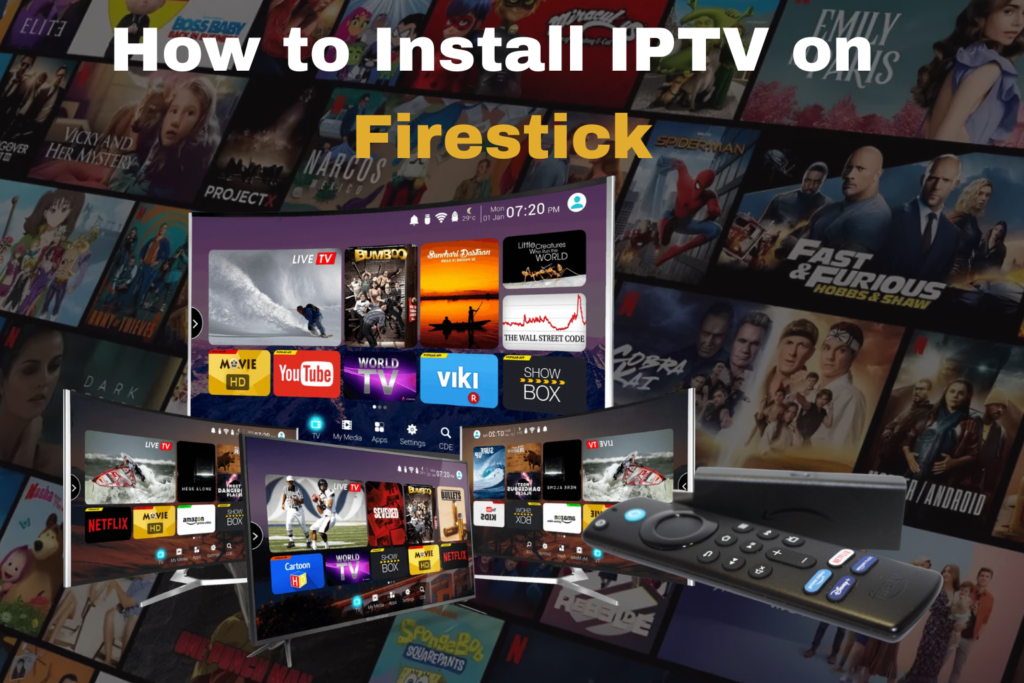
This guide explains how to install IPTV on Firestick quickly and easily. Learning how to install IPTV on Firestick takes less than 10 minutes. Follow our steps to install IPTV on Firestick and start watching 40,000+ live channels instantly. Installing IPTV on Firestick has never been easier with Intivimate IPTV.
If you want to watch live TV, sports, and movies on your Amazon Firestick, installing IPTV is the best way to get started. In this guide we will show you exactly how to install IPTV on Firestick in just a few minutes — no technical experience needed. Learn more about what IPTV is and how it works.
What You Need Before You Start
Before you install IPTV on Firestick you will need three things. First, an Amazon Firestick or Fire TV device. Second, a stable internet connection with at least 10 Mbps speed. Third, an active IPTV subscription with your M3U playlist URL or Xtream Codes login details.
If you do not have an IPTV subscription yet, check our Intivimate IPTV plans which include 40,000+ live channels, 54,000+ VOD content, and all PPV events FREE — activated in just 5 minutes.
Step 1 — Enable Apps from Unknown Sources
Before installing any IPTV app on your Firestick you need to allow installation from unknown sources. Here is how to do it:
Go to your Firestick home screen and click Settings. Then select My Fire TV. Click Developer Options. Turn on Apps from Unknown Sources. Turn on ADB Debugging.
Your Firestick is now ready to install third party IPTV apps. For more help visit the official Amazon Firestick support page.
Step 2 — Download the Downloader App
The Downloader app is the easiest way to install IPTV on Firestick. Follow these steps:
Go to the Search icon on your Firestick home screen. Type Downloader and press search. Select the Downloader app from the results. Click Download and wait for it to install. Open the Downloader app and allow any permissions it requests.
Step 3 — Install IPTV Smarters Pro on Firestick
IPTV Smarters Pro is the best IPTV player for Firestick. To install it using Downloader follow these steps:
Open the Downloader app. In the URL box type this address: https://www.iptvsmarters.com/smarters.apk. Click Go and wait for the file to download. When the download is complete click Install. Wait for the installation to finish then click Done.
IPTV Smarters Pro is now installed on your Firestick. You can also download IPTV Smarters Pro directly from their official website.
Step 4 — Set Up Your IPTV Subscription
Now you need to add your IPTV subscription to the app. Open IPTV Smarters Pro and follow these steps:
Click Add User. Select Login with Xtream Codes API if your provider gave you a username, password, and server URL. Or select M3U URL if your provider gave you an M3U playlist link. Enter your login details provided by your IPTV service. Click Add User to confirm.
Your channels will now load automatically. This may take a few minutes depending on your internet speed. Need an IPTV subscription? View our complete IPTV channel list to see everything included.
Step 5 — Start Watching
Once your channels are loaded you can start watching immediately. Browse through Live TV to find your favorite channels. Use the EPG (Electronic Program Guide) to see what is on. Access Movies and Series in the VOD section. All PPV events will appear automatically in your channel list.
Best IPTV Apps for Firestick
While IPTV Smarters Pro is the most popular choice there are other great IPTV apps for Firestick you can use:
IPTV Smarters Pro is the best overall app with a clean interface and full EPG support. TiviMate is a premium app with an excellent user interface and advanced features. GSE Smart IPTV is great for beginners with simple navigation. Perfect Player is a lightweight option that works well on older Firestick models.
Tips for the Best IPTV Experience on Firestick
Use a wired ethernet adapter instead of WiFi for more stable streaming. Restart your Firestick regularly to clear cache and improve performance. Choose an IPTV provider with 99.9% server uptime like Intivimate IPTV to avoid buffering. Make sure your internet speed is at least 25 Mbps for 4K streaming. Use a VPN for extra privacy while streaming IPTV on Firestick.
Troubleshooting Common IPTV Issues on Firestick
IPTV buffering on Firestick — Check your internet speed and restart your router. Switch from WiFi to ethernet if possible.
IPTV app not loading channels — Check that your subscription is active and your login details are correct. Contact our support team on WhatsApp anytime.
Firestick running slow with IPTV — Clear the app cache by going to Settings → Applications → Manage Installed Applications → IPTV Smarters → Clear Cache.
IPTV stream freezing — This is usually a server issue. Choose an IPTV provider with antifreezing technology like Intivimate IPTV for uninterrupted streaming.
Why Choose Intivimate IPTV for Firestick?
Intivimate IPTV is fully compatible with Amazon Firestick and Fire TV devices. Our service includes:
40,000+ live TV channels with EPG. 54,000+ movies and series on demand. All PPV events included FREE. Antifreezing technology for smooth streaming. 99.9% server uptime guarantee. Activation in just 5-7 minutes. 24/7 customer support via WhatsApp.
We offer flexible plans from 3 month up to 2 years so you can choose the best option for your needs. All plans come with a 10 days money back guarantee.
Frequently Asked Questions
Is it safe to install IPTV on Firestick? Yes it is safe as long as you use a trusted IPTV app like IPTV Smarters Pro and a reliable IPTV provider like Intivimate IPTV.
Do I need a VPN for IPTV on Firestick? A VPN is not required but it adds an extra layer of privacy to your streaming activity.
Can I install IPTV on any Firestick model? Yes our IPTV service works on all Amazon Firestick and Fire TV models including Firestick 4K, Firestick 4K Max, Fire TV Cube, and older Firestick models.
How long does it take to set up IPTV on Firestick? The entire process takes about 5-10 minutes from start to finish.
What internet speed do I need for IPTV on Firestick? We recommend at least 10 Mbps for HD streaming and 25 Mbps for 4K streaming.
Conclusion
Installing IPTV on Firestick is simple and takes less than 10 minutes. With the right IPTV app and a reliable subscription you can enjoy thousands of live channels, movies, and series on your TV. If you are looking for the best IPTV service for Firestick, Intivimate IPTV offers the most complete channel list at the best price with instant activation and 24/7 support.
Ready to get started? Check our IPTV plans and get your subscription activated in minutes. Any questions? Chat with us on WhatsApp anytime.